

How To Migrate WordPress Website Using Migrate Guru Easily
STEP 1: Install Migrate Guru on the OLD site (Source: where you want to migrate from)
1. Log in to WordPress Admin of the old website
2. Go to Plugins → Add Plugin
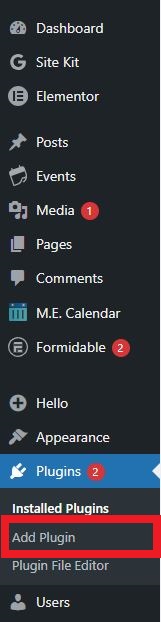
3. Search for Migrate Guru
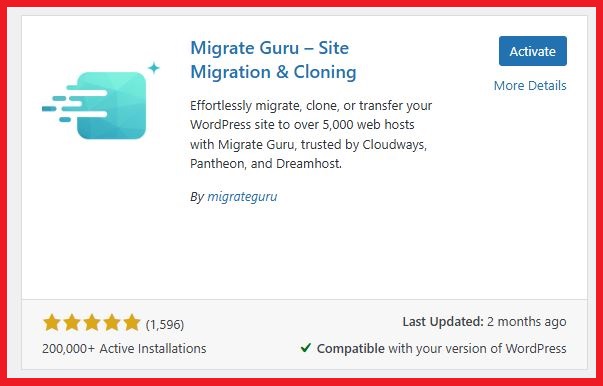
4. Click Install → Activate
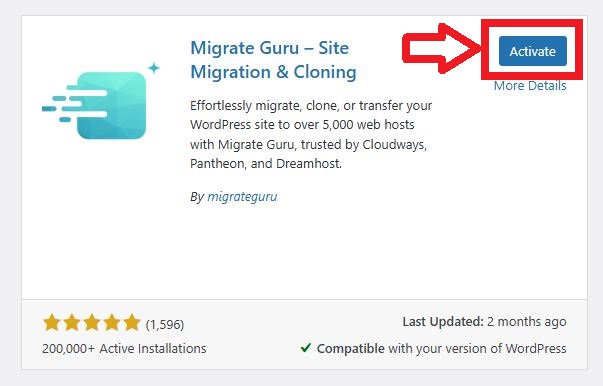
Repeat Step 1 on the NEW site (Destination: where you want to migrate to)
STEP 2: Start a New Migration
1. After activation, go to: WordPress Dashboard → Migrate Guru
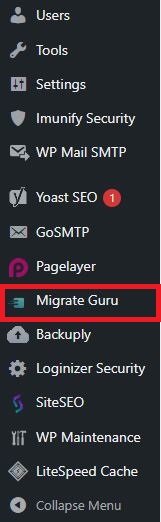
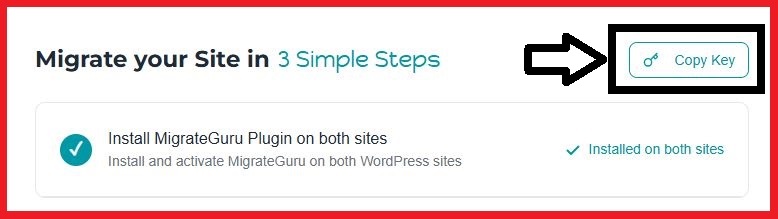
2. On your old site, Click on Copy Key and copy the key
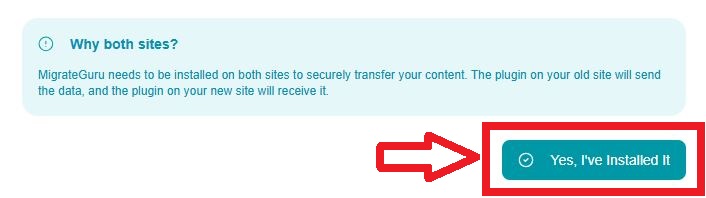
3. Click on Yes, I’ve Installed button on the new site
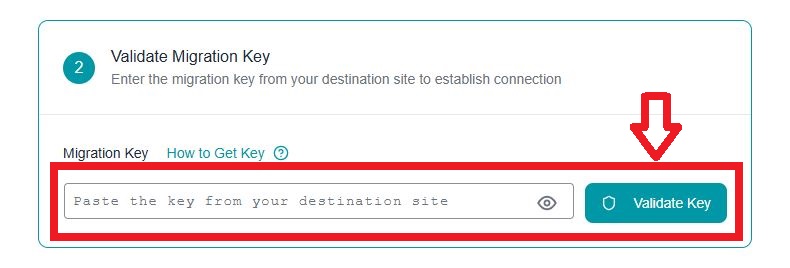
4. Paste the copied key and click on the Validate Key button on the NEW site (Destination: where you want to migrate to)
STEP 3: Choose Destination Type
1. Type your email address
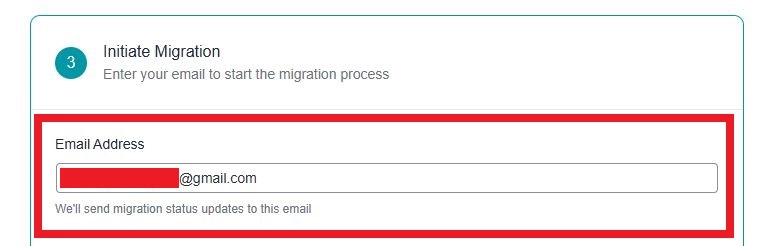
2. Confirm source and destination sites and click on the Initiate Migration button to begin migration.
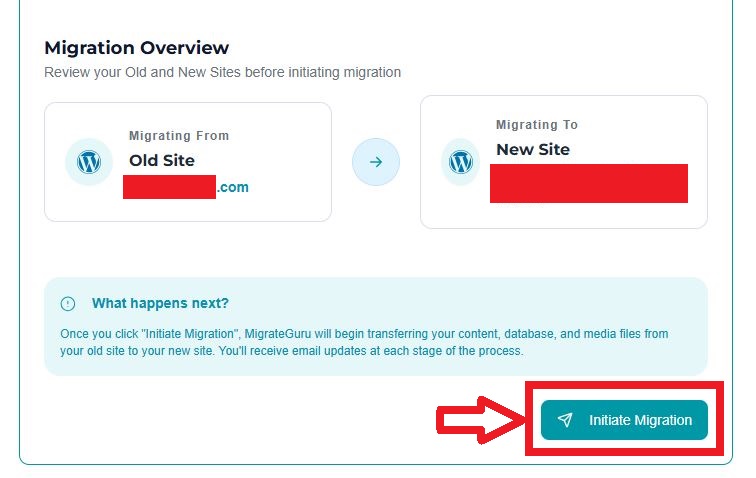
3. Once migration completes or an issue is encountered, you will be notified via the email you provided.
4. Once migration completes, check and update the DNS records for the new site if there has been any changes.
STEP 4: On the new site:
1. Go to Settings → Permalinks → Save
2. Clear cache (if caching plugin exists)
