How To Enable Two-Factor Authentication In Client Area
Two-factor authentication (2FA) adds an extra layer of protection to your account. Once enabled and configured, you will be asked to enter both your username and password as well as a second factor such as a security code each time you sign in.
1. Log in to the CLIENTAREA
2. While logged in click on User icon on the top menu

3. Click on Security Settings on the right menu
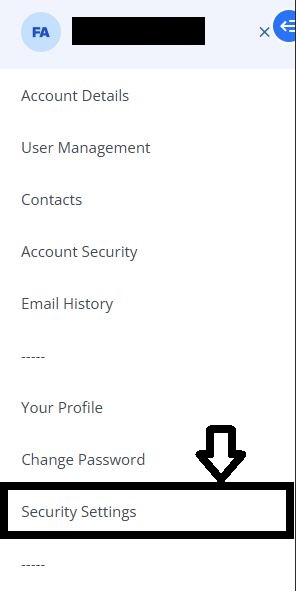
- 4. Click on the green button to enable the “Two-Factor Authentication”

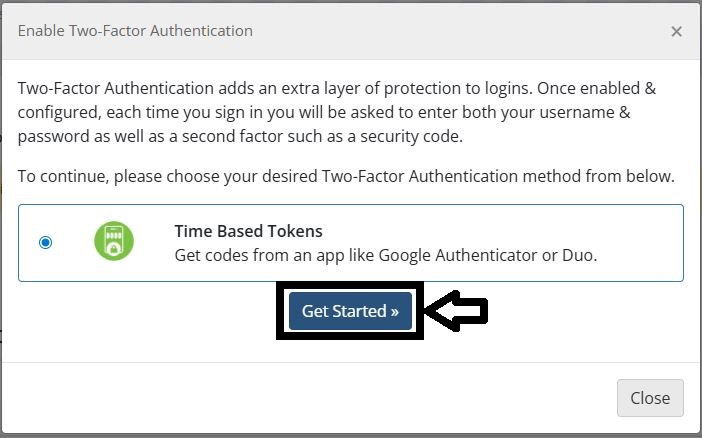
- 5. Click on the “Get Started” button to begin
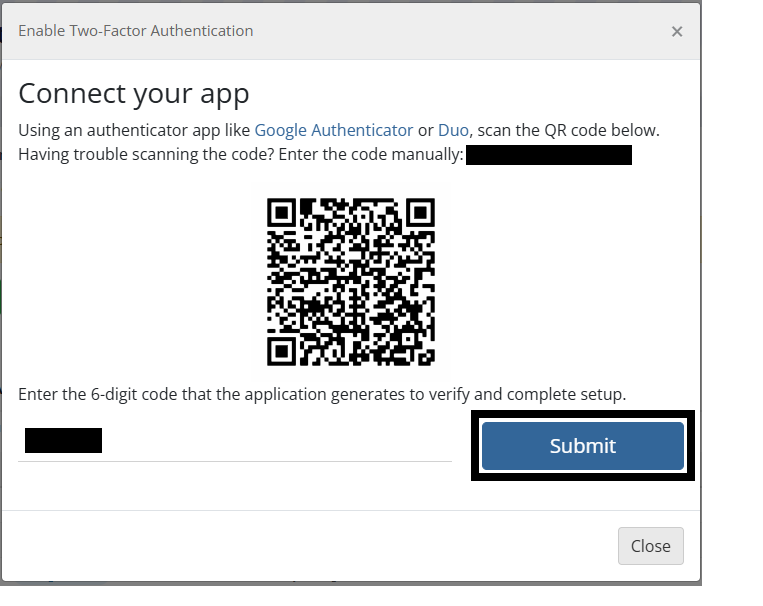
6. Scan the QR Code using Google Authenticator app on your phone to get your 6-digit code on the next modal popup. Enter the code and click on Submit
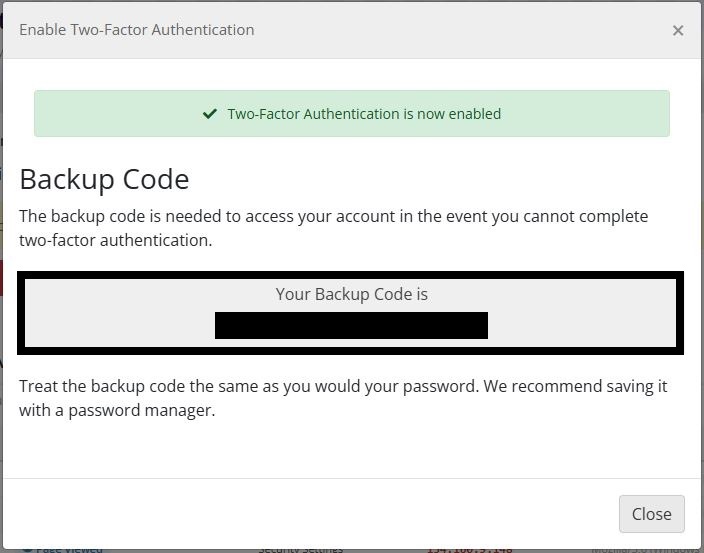
7. Once done, your Two-Factor Authentication will successfully be done and a backup code will be generated for you. (The backup code is needed to access your account in the event you cannot complete two-factor authentication)